| Audience | Marketers, business users |
| Prerequisites | At least one Agent → |
Inspector helps you understand how messages are delivered to individual users. Use it to QA campaigns, troubleshoot delivery behavior, and explain outcomes with confidence.
What you’ll learn
After reading this article, you’ll know how to:
- Navigate the Inspector interface
- Review a user’s journey across agents
- Understand message decisions and suppression
- Use Inspector for QA, troubleshooting, and reviews
Overview
Inspector helps you understand how messages are delivered to an individual user.
Instead of aggregated metrics, Inspector shows exactly what happened for a specific person—step by step—across one or more agents. This makes it easy to validate campaign behavior and explain outcomes with confidence.
In Inspector, you can review a user’s full journey across agents, including:
- When the user becomes eligible for an agent
- Which messages were evaluated and which were sent
- When sends were skipped due to guardrails or Smart Suppression
- Which content and variants were selected
- Why a specific decision was made at that moment
Inspector is most useful during campaign setup, QA, troubleshooting, and reviews, when you need to confirm that agents are behaving as expected for real users.
It complements Insights, which focuses on performance trends and lift across many users, by providing a clear, user-level explanation of delivery behavior.
Navigate to Inspector
In the Hightouch app, go to:
AI Decisioning → Inspector
From here, you can:
- Filter by All agents or a specific agent
- Search for a user
- Step forward or backward between users
- Review each user’s experience over time
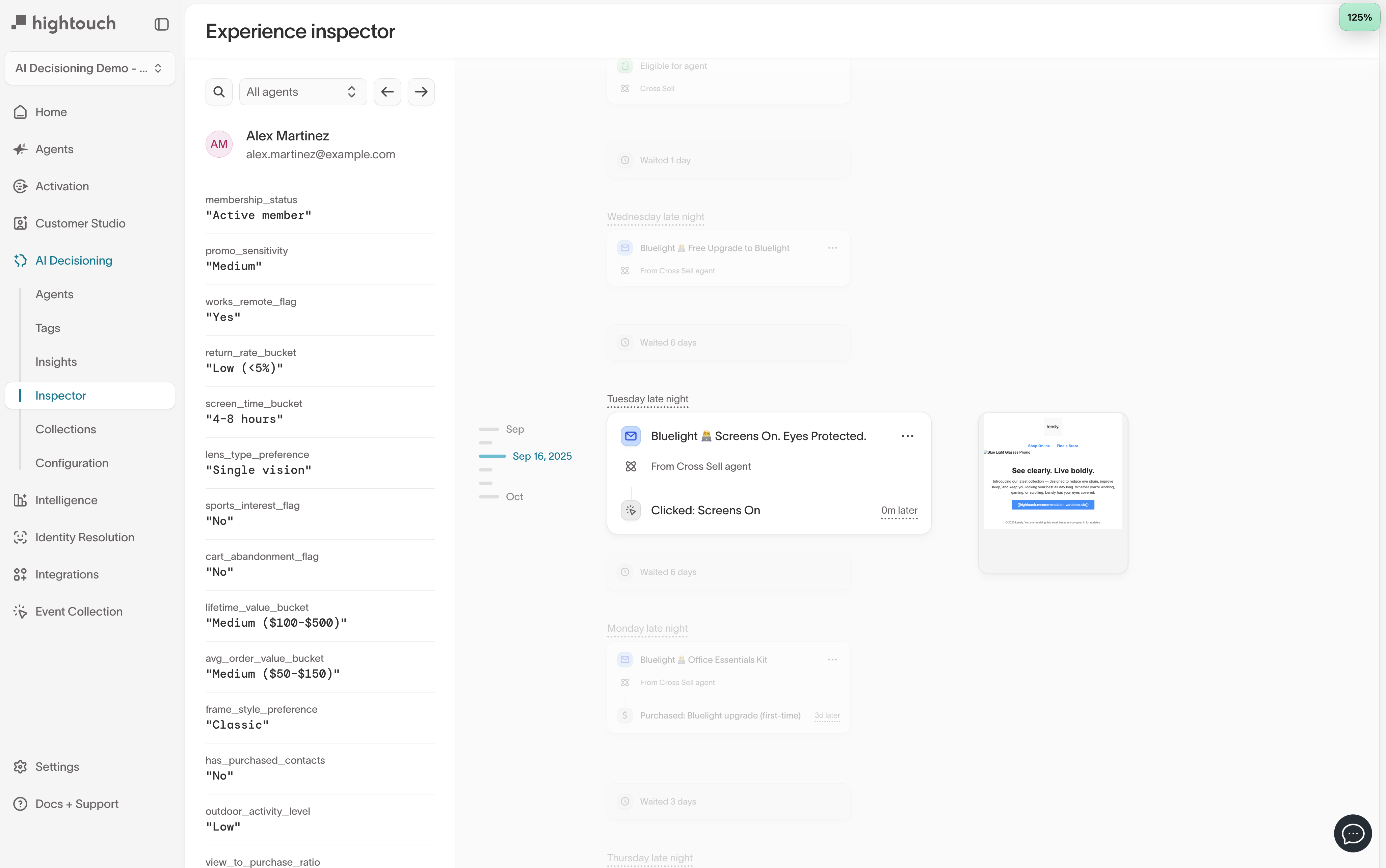
Review a user’s experience
Inspector is organized into three main areas that work together to explain delivery behavior.
User attributes
The left panel shows the full set of user attributes available to agents.
These attributes help explain:
- Eligibility and agent entry
- Message selection and personalization
- Suppression or exit behavior
This view represents the broader user context agents can use when evaluating decisions across the user’s journey.
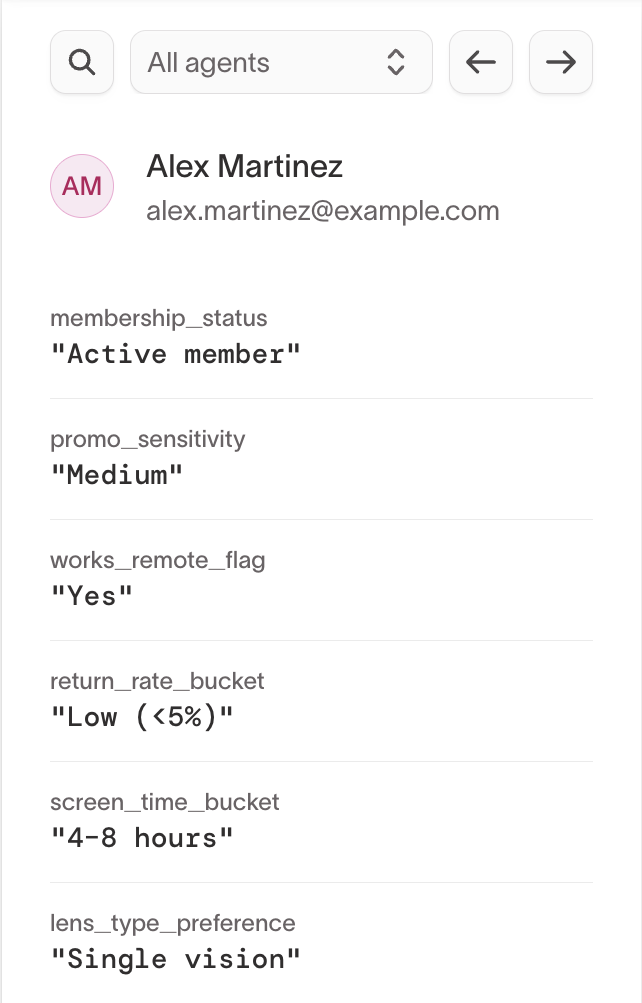
The attributes shown here represent everything the agent knows about the user.
Not every attribute directly influences every message decision.
Experience timeline
The center panel shows a chronological timeline of the user’s journey across agents.
You may see events such as:
- Eligible for agent
- Wait periods between evaluations
- Messages sent, including channel and agent
- Skipped sends, including Smart Suppression
- Agent exit events
- Outcome events, such as clicks or purchases (when available)
This timeline makes it easy to understand both what happened and what didn’t happen, in context.
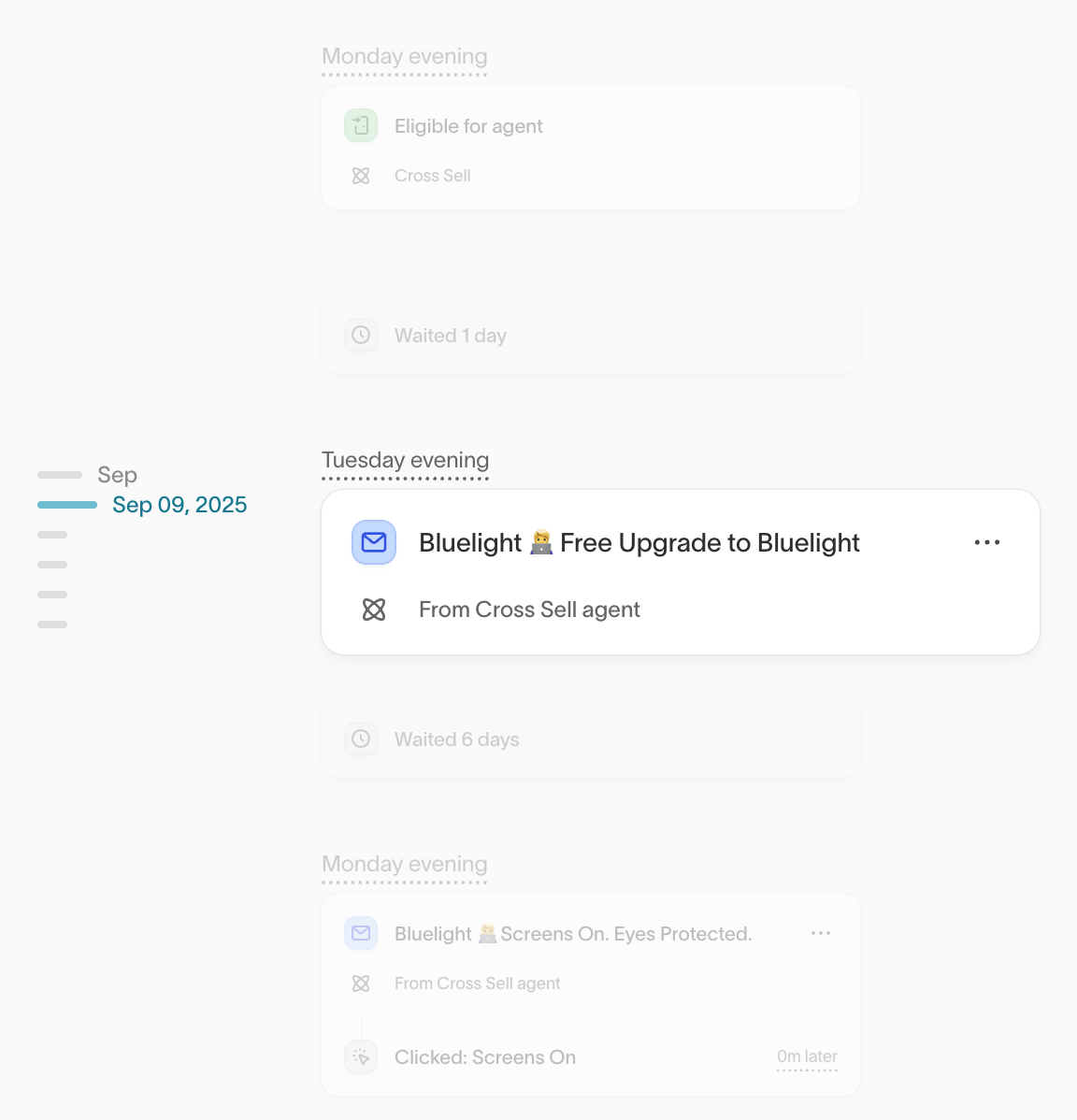
Message details
Select any message card in the timeline to open the message details drawer.
This view explains what was sent and why it was selected.
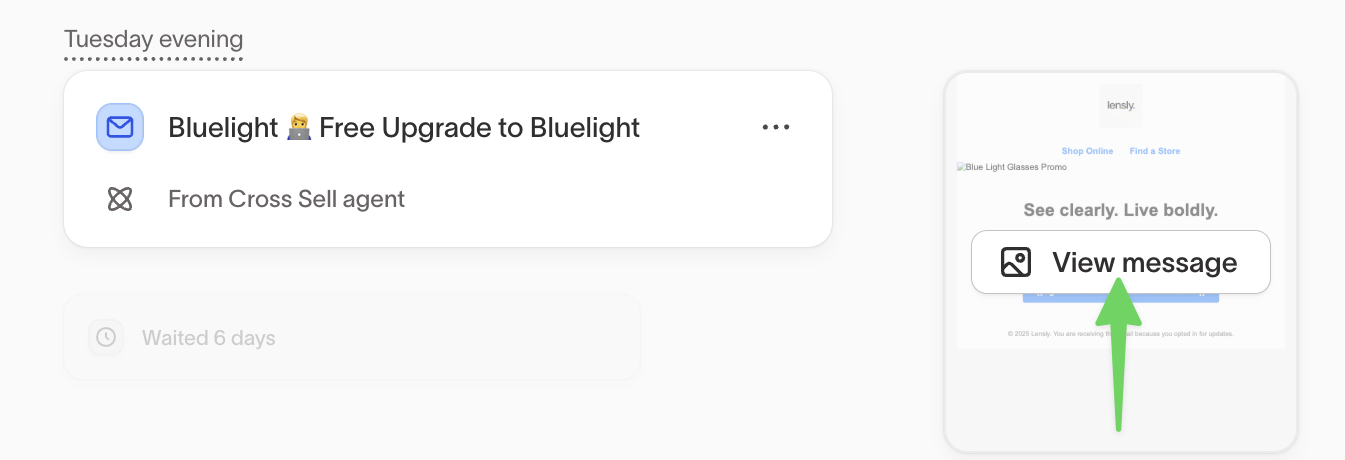
The drawer includes several tabs:
| Tab | Purpose |
|---|---|
Preview | View the rendered message content as delivered to the user (when supported). |
Data | Inspect the payload sent to the destination, including variables and metadata. |
Reasoning | Understand why this message was selected, including key attributes that influenced the decision. |
Internal | View internal identifiers and diagnostic details used for support and debugging. |
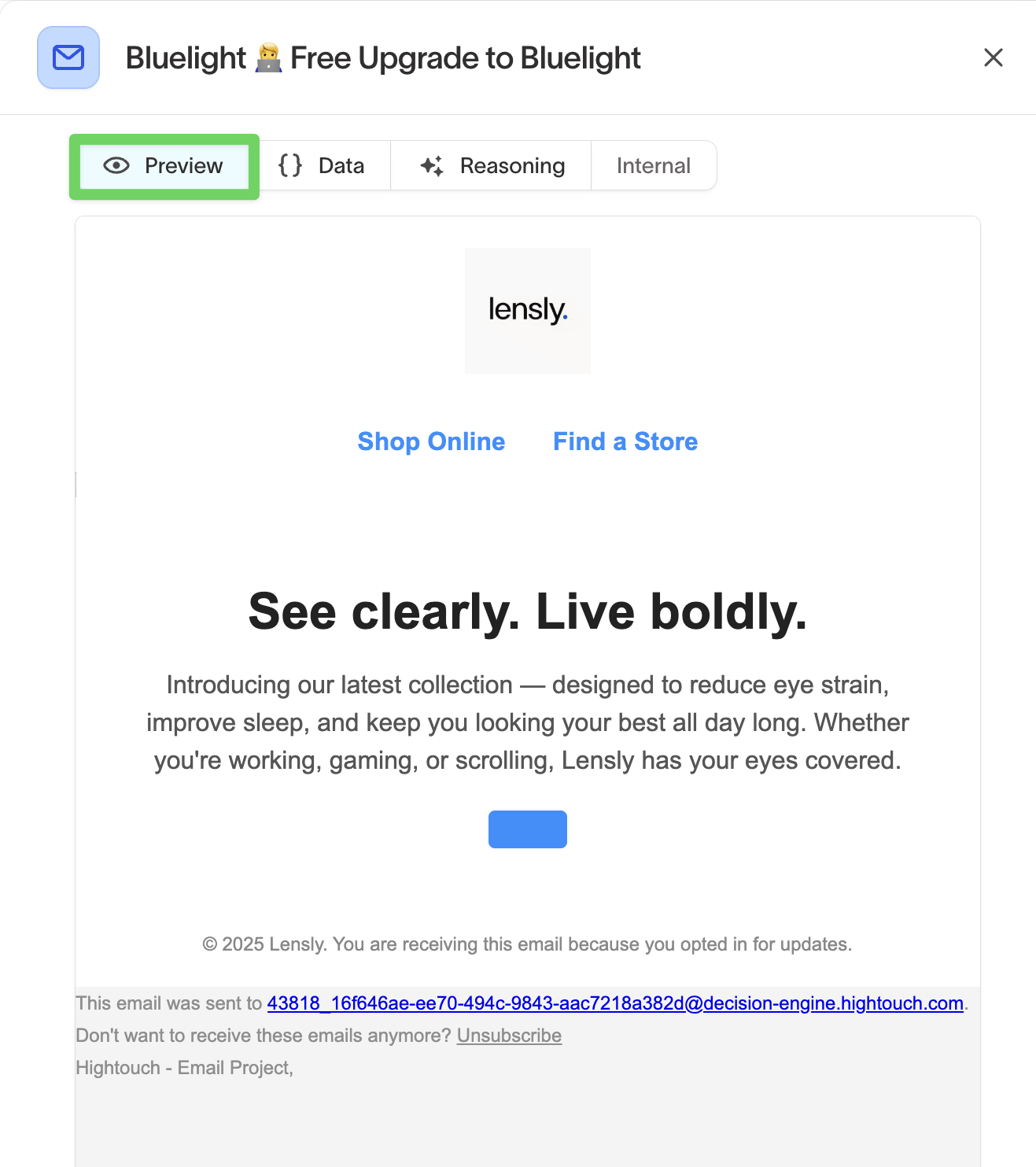
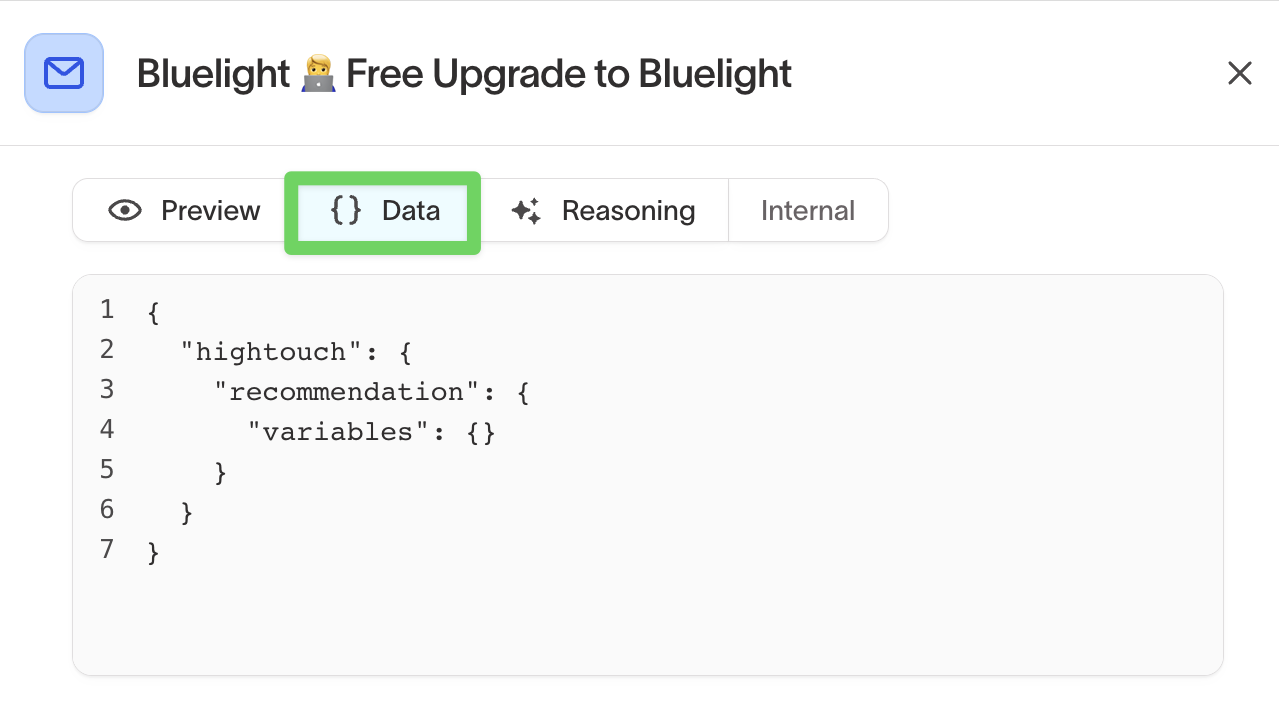
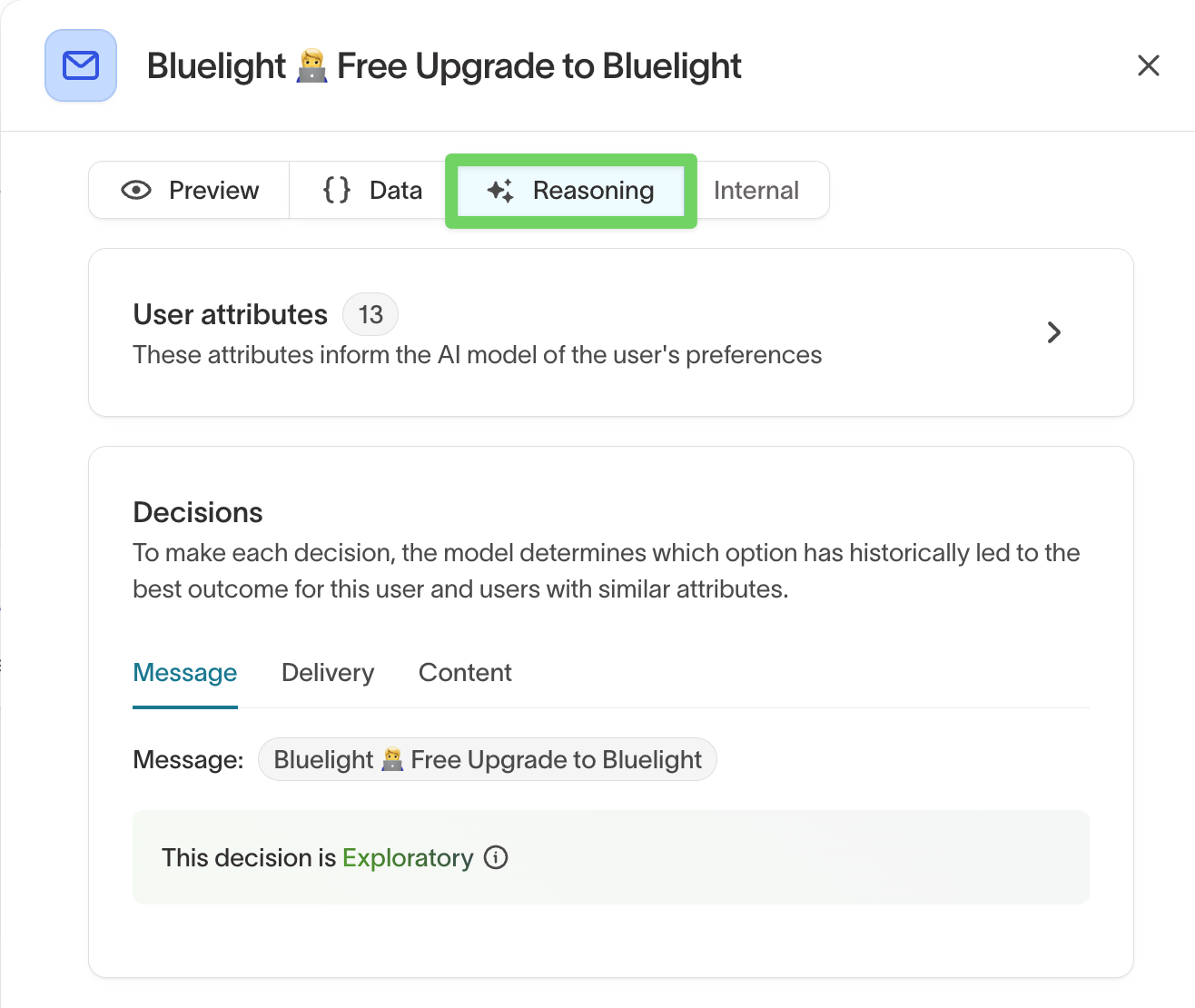
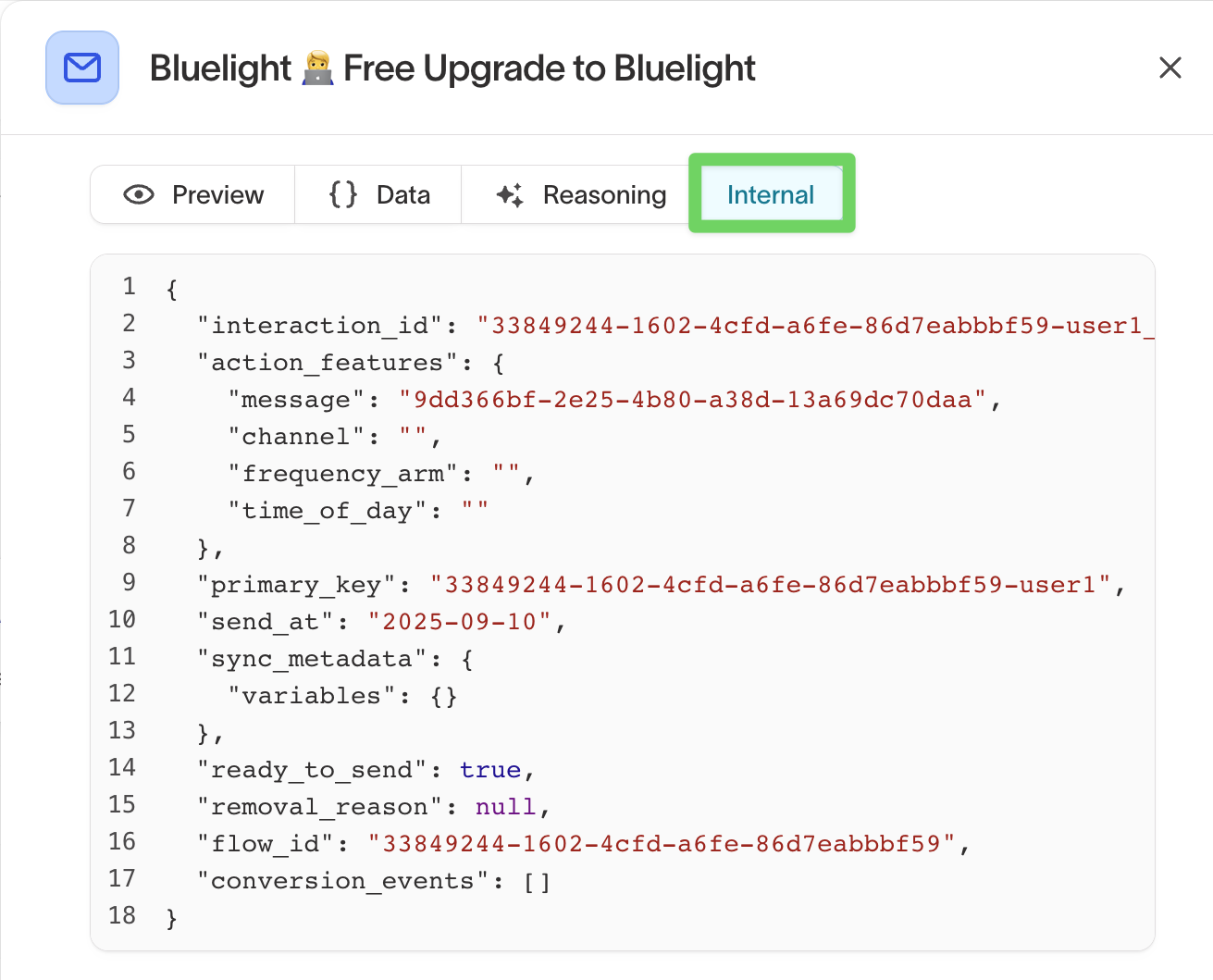
Use these views together to validate content, confirm personalization logic, and explain message decisions.
Understand message decisions
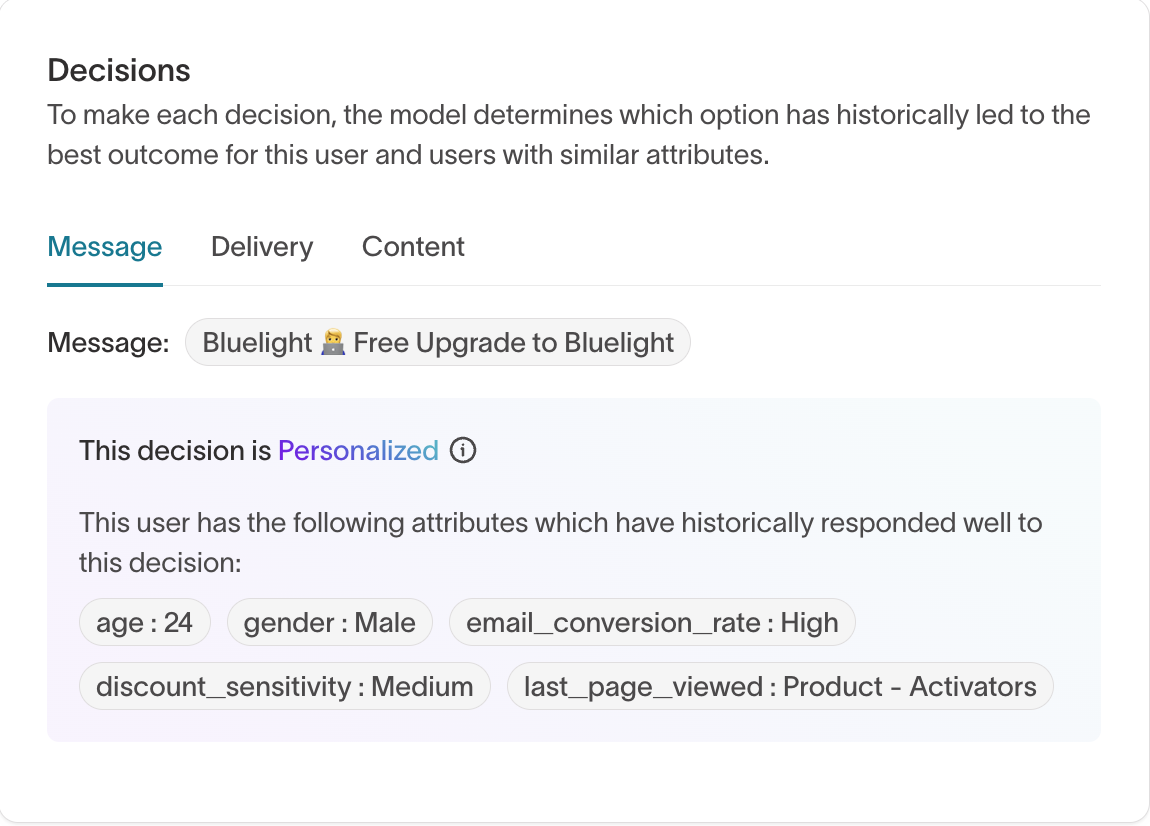
After reviewing a user’s overall journey, use the Reasoning tab in the message details drawer to understand why a specific message was chosen at that moment.
The Reasoning tab surfaces the key inputs and signals that influenced the agent’s decision.
When reviewing a message’s reasoning, you’ll see:
- A subset of user attributes that most influenced selection
- Whether the decision was:
- Personalized — selected because it is expected to perform well for this user based on similar users and prior outcomes
- Exploratory — selected to gather more data and learn how it performs
- The delivery channel used for the message
- Context about how the agent evaluated available options at decision time
This view is especially useful when you need to explain why one message or variant was chosen over another, or when validating that agents are behaving as expected before scaling a campaign.
The attributes shown in the left panel represent the full user context available to agents. The Reasoning tab highlights only the attributes that were most relevant for this specific decision.
When to use Inspector
Use Inspector when you need a clear, user-level explanation of how an agent behaved for a specific person.
Inspector is best suited for questions like:
- Why did this user receive this message?
- Why was a send skipped or suppressed?
- What personalization or attributes influenced the decision?
- How did this user’s experience unfold across agents?
Common scenarios include:
| Scenario | How Inspector helps |
|---|---|
| QA a new agent | Preview upcoming messages and confirm eligibility before launch |
| Troubleshoot skipped sends | Identify Smart Suppression, wait periods, or exit conditions |
| Validate personalization | Confirm variables, recommendations, and attributes used |
| Review user journeys | See how experiences unfold across multiple agents |
| Stakeholder reviews | Walk through real user examples to explain outcomes |
For performance trends, lift analysis, and insights across many users, use Insights →.