| Audience | Marketers, business users |
| Prerequisites |
|
Agents are the foundation of AI Decisioning. Each agent defines your audience, messages, and goals, and automatically optimizes campaign performance over time.
Learning objectives
After reading this article, you’ll know how to:
Overview
An Agent in AI Decisioning combines your audience, messages, and goals into a single adaptive campaign.
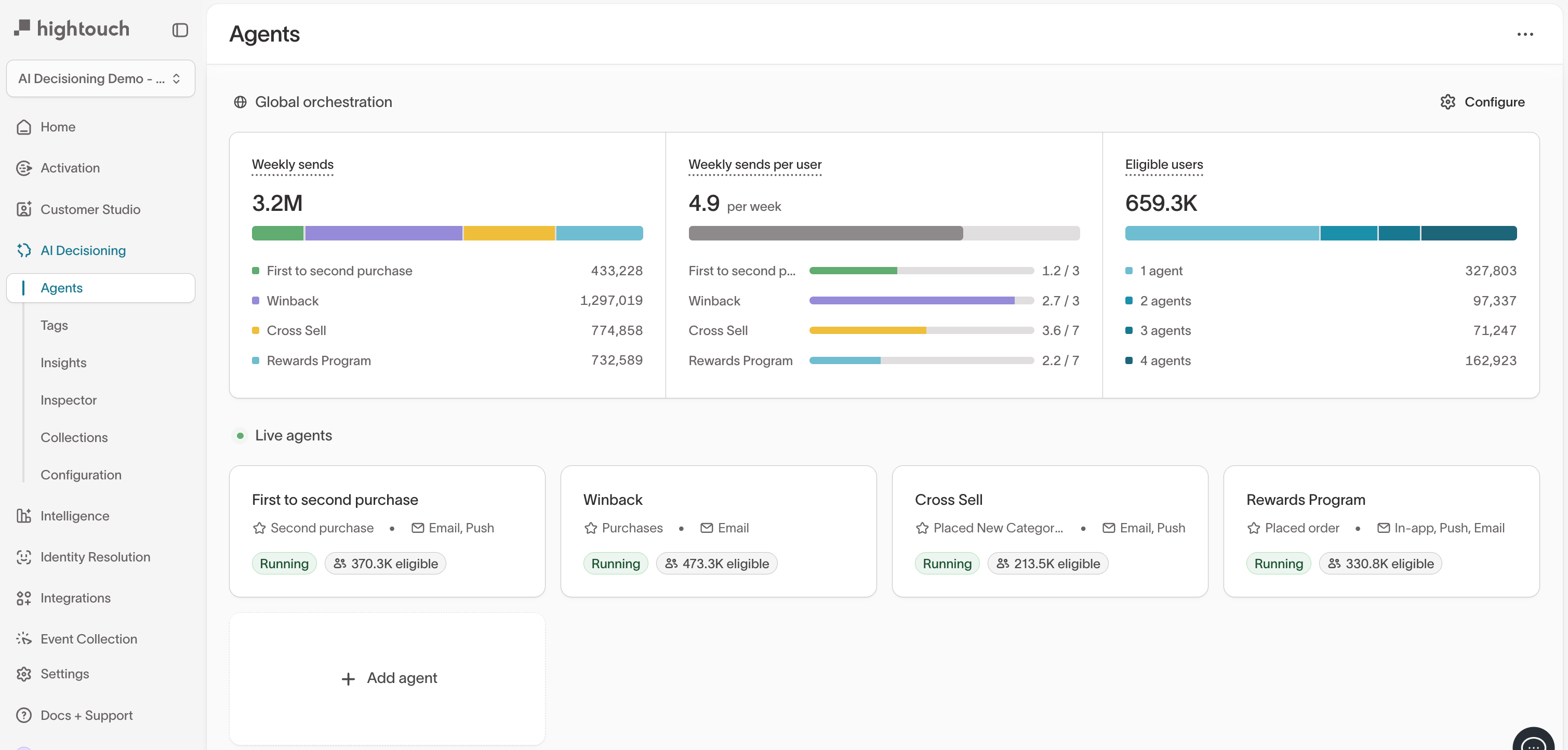
Agents use reinforcement learning to decide which message, timing, and channel will drive the best outcome for each user. They operate continuously, learning from real user outcomes such as clicks, purchases, or sign-ups.
Each new message helps the model understand which creative and timing combinations perform best for different audiences.
Agents don’t replace your content or rules—they learn within the goals, audiences, and guardrails you define.
Create a new agent
- Go to
AI Decisioning →Agents. - Click
+ Add agent.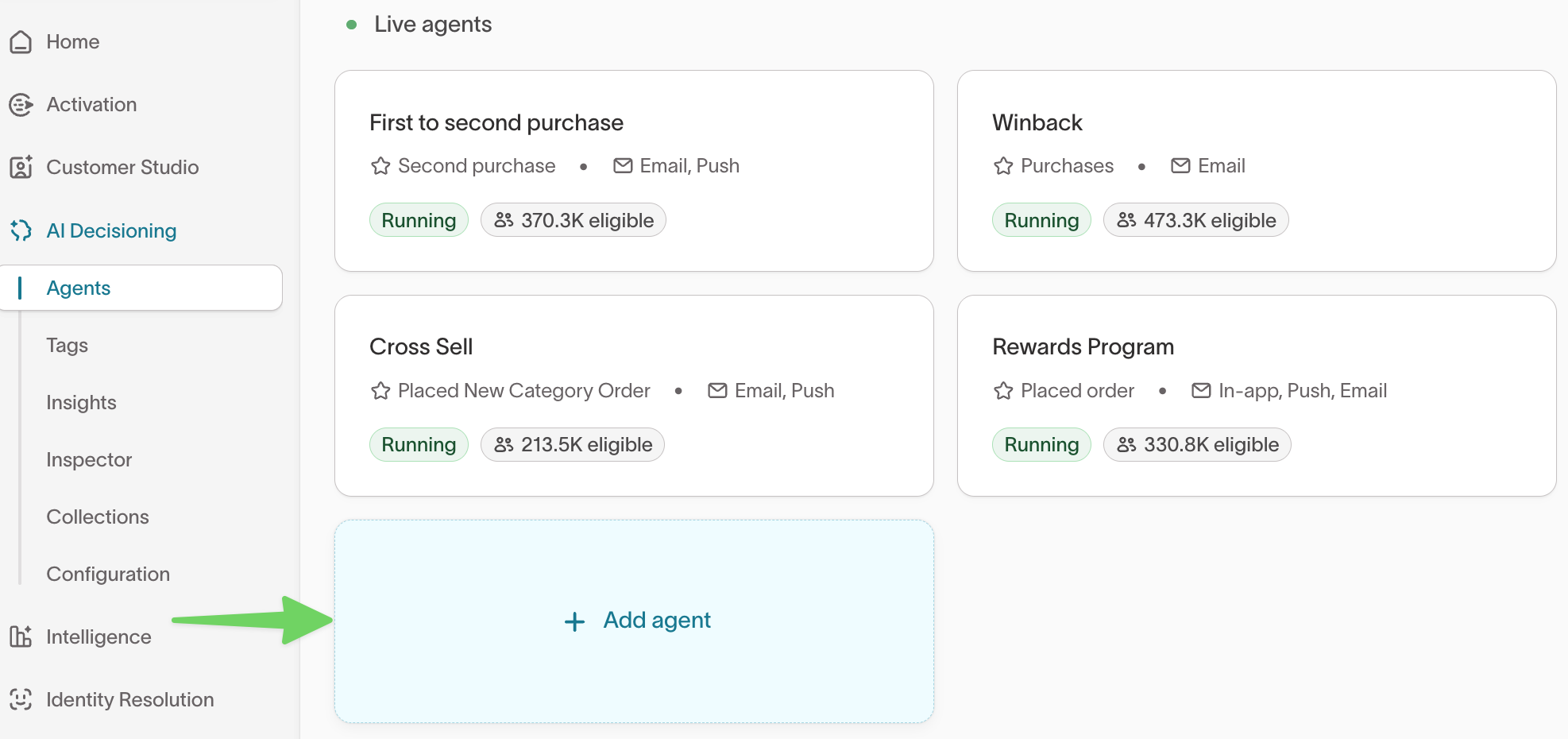
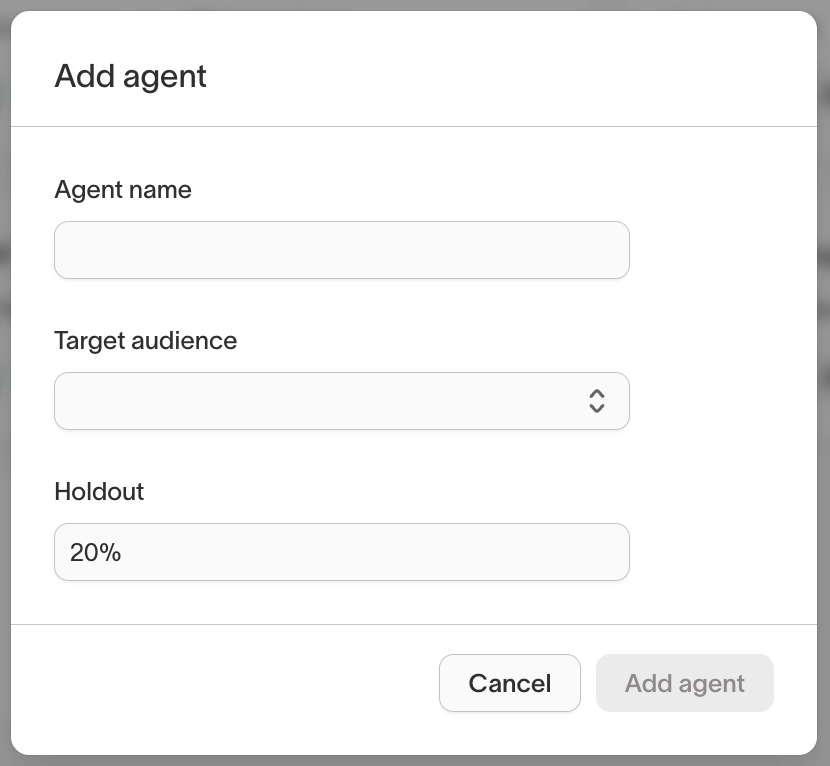
- Enter a name that reflects your campaign’s purpose, such as
Win-back customersorSubscription renewals. - Choose a target audience from Customer Studio → Audiences.
- (Optional) Add a holdout group to measure incremental lift (for example,
20%). - Click
Add agent.
Configure your agent
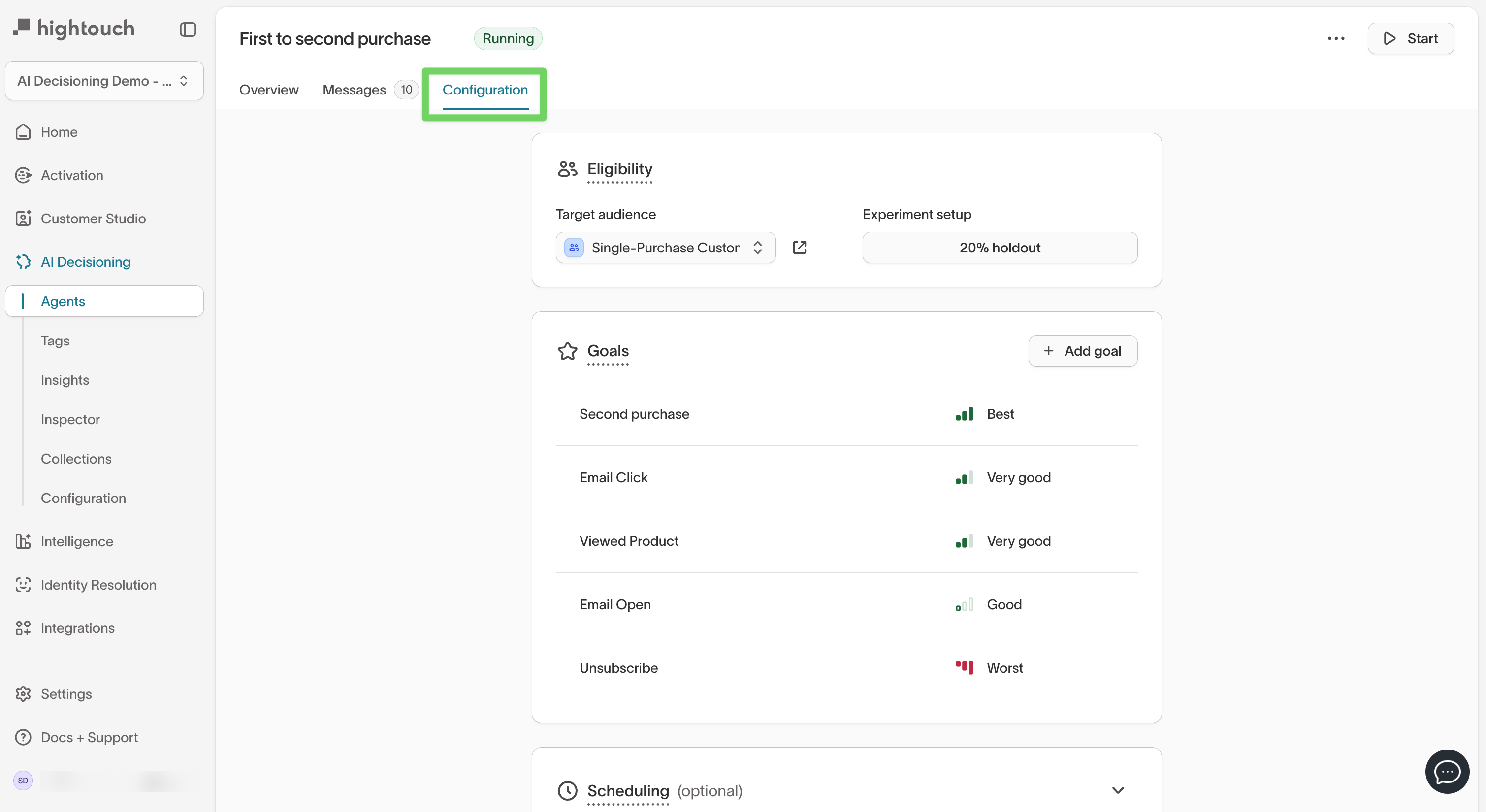
After creation, click your agent to open the Configuration tab.
From here, you can set audience eligibility, messages, goals, Smart Suppression, and scheduling preferences.
Step 1: Set audience eligibility
This section shows the audience your agent targets and any experimental setup, such as a holdout group.
| Setting | Description |
|---|---|
| Target audience | The audience defined in Customer Studio. |
| Holdout group | The control group used to measure true lift (for example, 20%). |
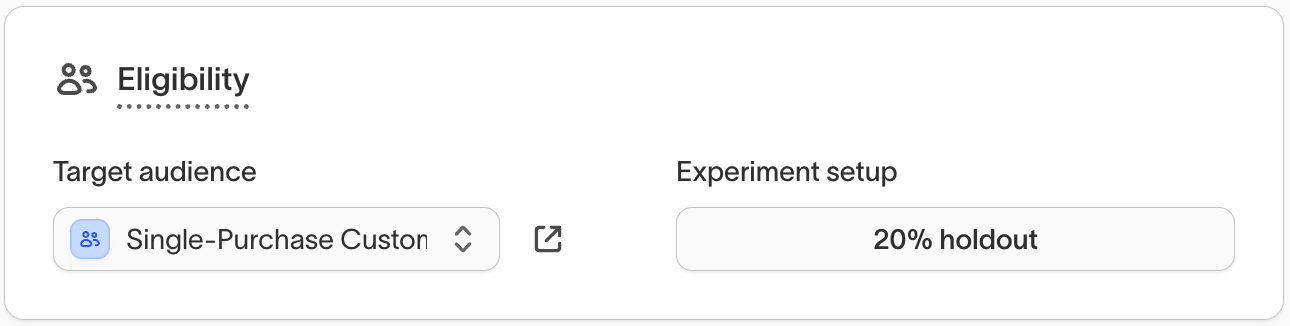
Holdouts let you compare users who receive messages with users who don’t, so you can measure incremental lift.
Step 2: Add and manage goals
Goals define what your agent optimizes toward.
Each goal represents a measurable event (like a purchase or click) and includes a priority level—helping AID decide which outcomes matter most.
To add a goal:
-
In your agent’s
Configurationtab, underGoals, click+ Add goal.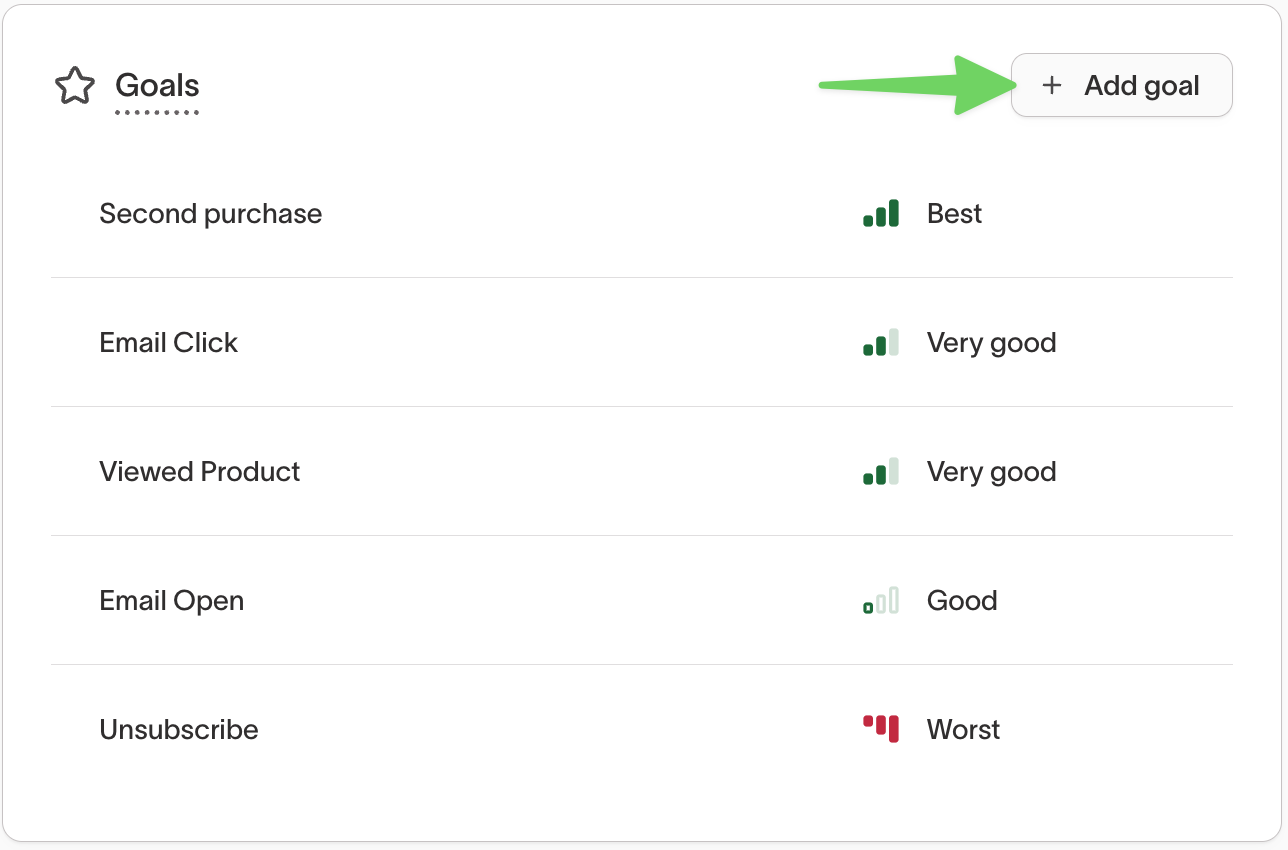
-
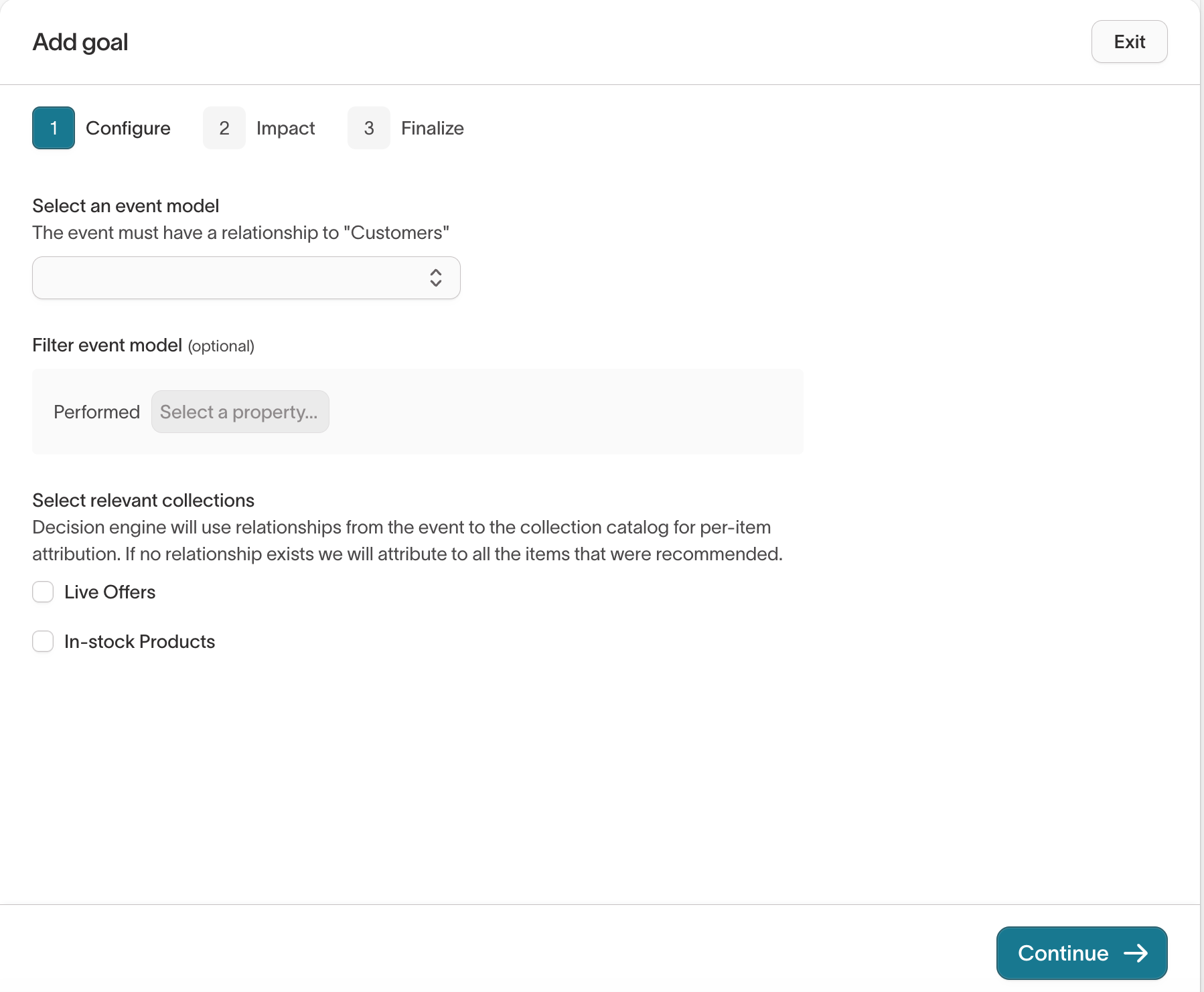
Configure the goal.
- Select an event model (for example,
Purchase event,Viewed Product, orRedeemed offer). - (Optional) Add a filter to refine the event, such as
Performed → Where property is campaign = Summer Sale. - (Optional) Select related collections (for example,
Live Offers,In-stock Products) to attribute conversions to catalog items.
- Select an event model (for example,
-
Click
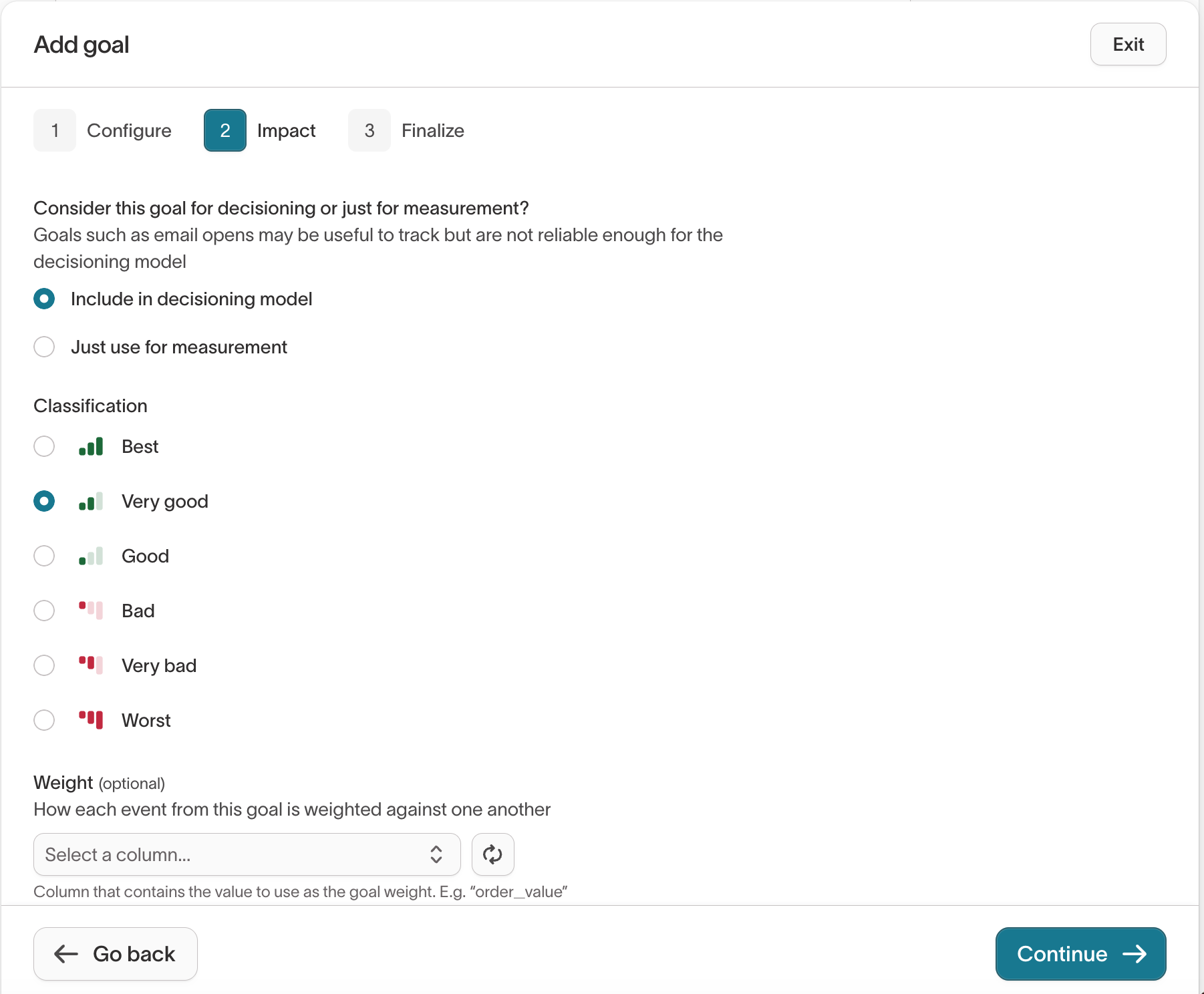
Continueto move to theImpactstep.- Choose whether to include this goal in decisioning or track it for measurement only.
- Select a classification:
Best— Primary success metricVery good/Good— Positive supporting outcomesBad/Very bad/Worst— Negative outcomes such asUnsubscribe
- (Optional) Add a weight column to scale results by value (for example,
PriceorOrder Value).
-
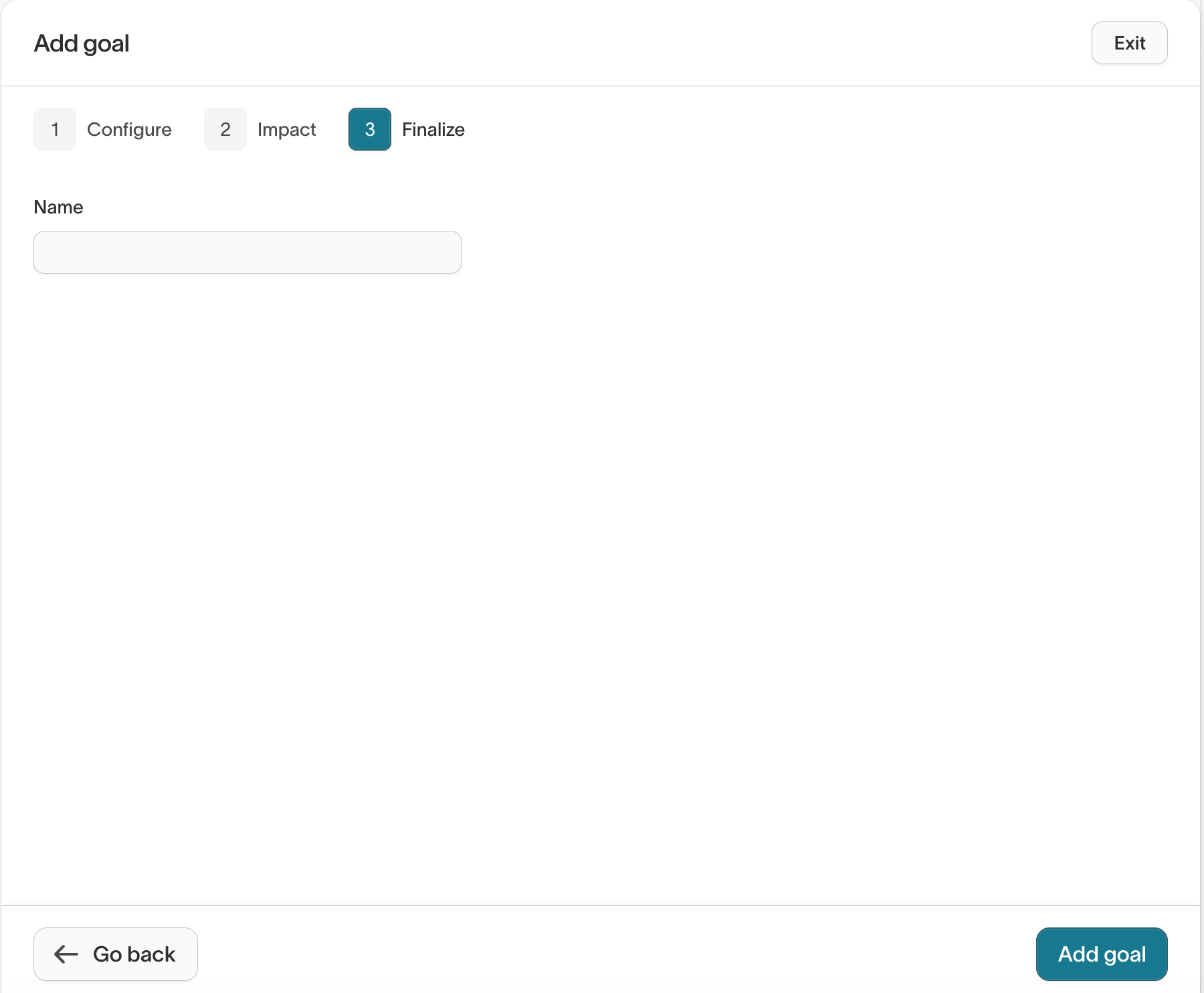
Click
Continueto finalize.- Enter a clear, descriptive goal name (for example,
Redeemed offer). - Click
Add goalto save.
- Enter a clear, descriptive goal name (for example,
Goals replace the older “Outcomes” field from earlier versions of AI Decisioning. Each agent learns continuously based on these metrics.
Start with one clear Best goal (for example, purchase) before adding supporting or negative signals.
Step 3 (optional): Configure scheduling
Use the Scheduling panel to control how often and when your agent sends messages.
| Setting | Description |
|---|---|
| Send frequency | Limits how often a user can receive messages (for example, 3x per week). |
| Quiet hours | Prevents sends during off-hours (for example, weekends or late nights). |
| Blackout dates | Pauses messaging during specific holidays or events. |
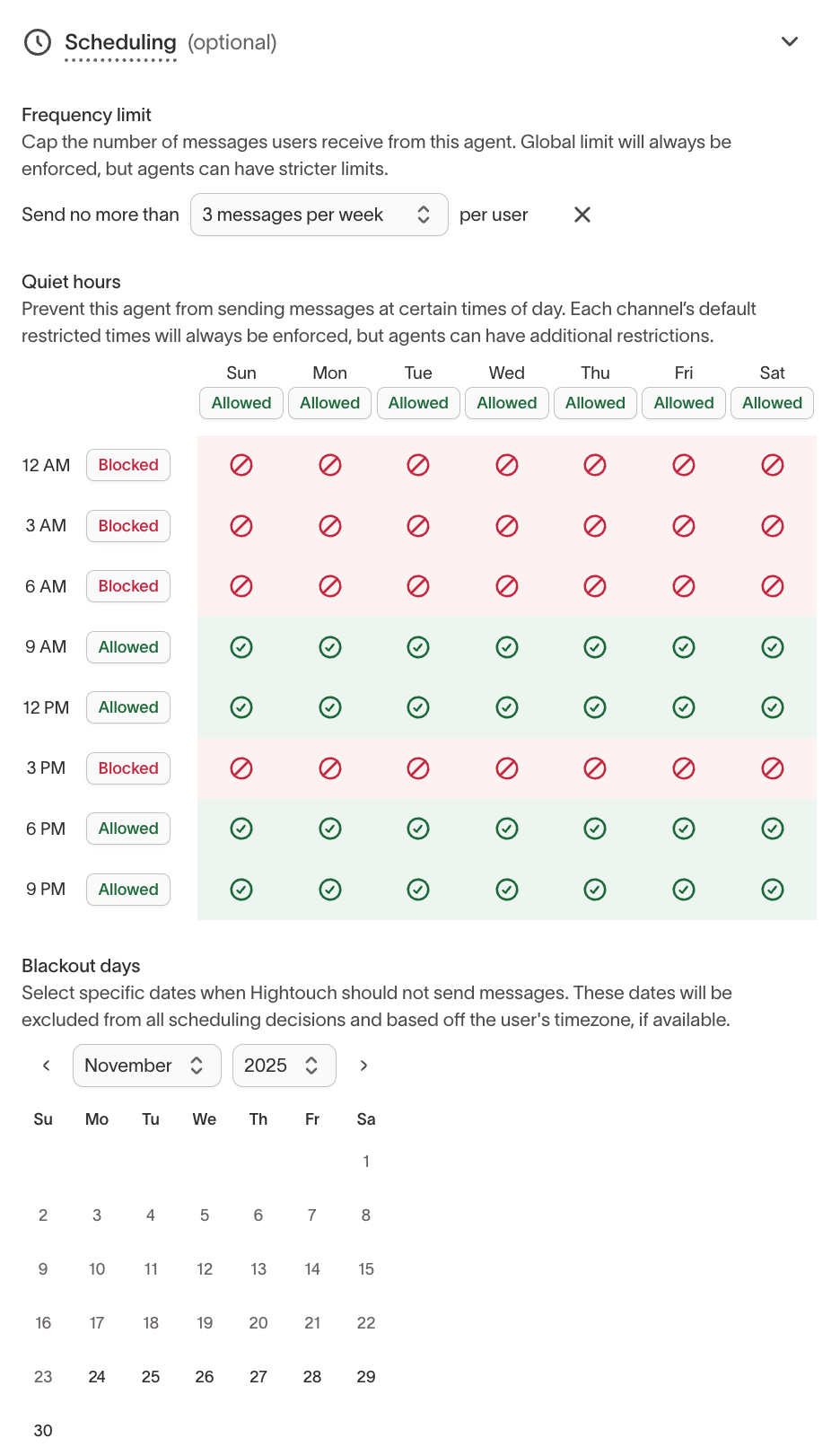
Use scheduling rules to maintain consistency across agents. Combine with Smart Suppression to control both when and whether messages are sent.
Step 4 (optional): Enable Smart Suppression
Smart Suppression limits low-impact sends using your agent’s learning data.
It predicts which messages are most likely to drive incremental conversions and suppresses the rest.
- In
Configuration, scroll toSmart suppression (optional). - Toggle
On. - Adjust the
Only send top [%]slider. - Choose a goal metric to optimize for.
- Review the performance curve once enough data is collected (typically after 2 weeks).
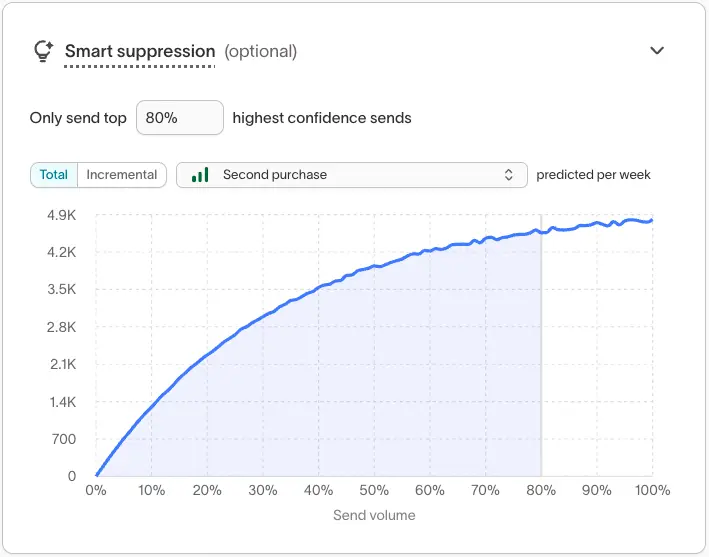
For detailed guidance, see Smart Suppression → Enable Smart Suppression.
Step 5 (optional): Advanced settings
Use Advanced settings to connect your agent with your organization’s downstream campaign tracking.
| Setting | Description |
|---|---|
| Customer managed campaign attribution | Enter one or more campaign IDs from your ESP or internal tracking system to tie AID results to your own reporting. |
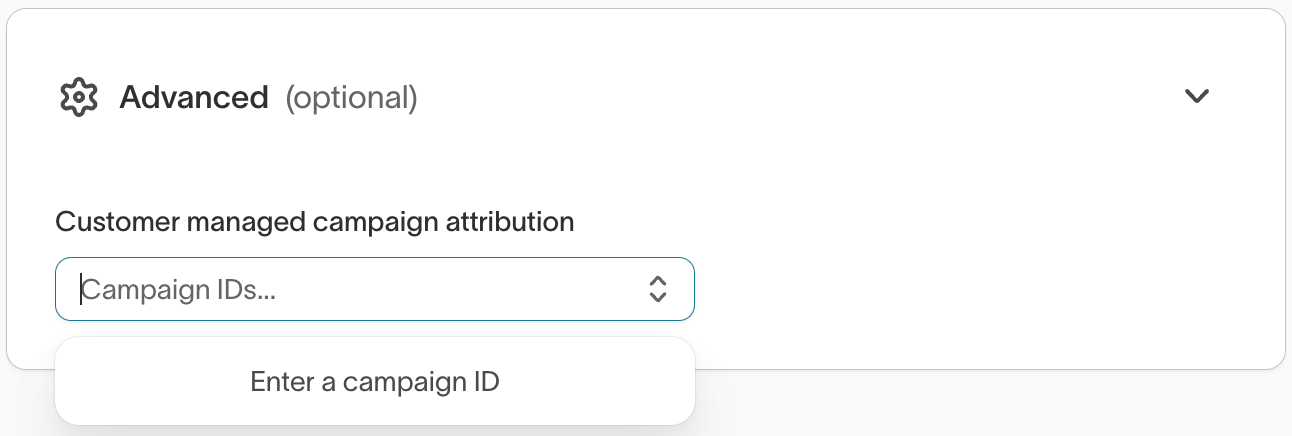
Campaign IDs help maintain consistent reporting between Hightouch and your connected destinations. For example, you can enter Braze, Iterable, or SFMC campaign identifiers to align AID outcomes with your existing analytics.
Monitor and manage agents
Once your agent is running, open the Overview tab to review live performance and experiment results.
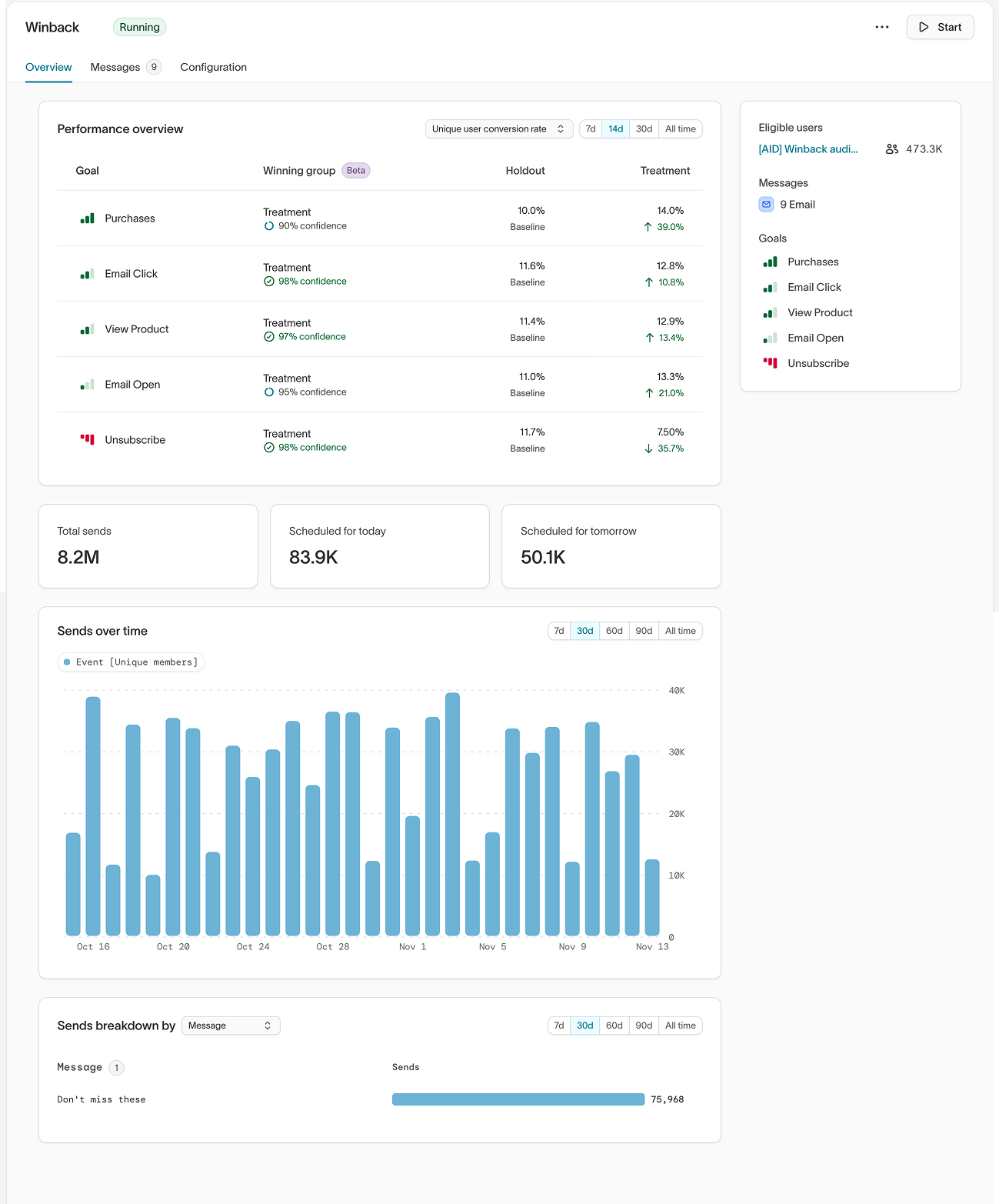
The Overview includes several key panels:
| Section | Description |
|---|---|
| Eligible users | Shows the number of users who currently qualify for your agent’s audience and can receive messages, excluding holdouts and ineligible users. |
| Performance overview | Shows conversion and engagement metrics for each goal, including the current winning group, holdout, and treatment performance with confidence intervals. |
| Sends summary | Displays total sends and messages scheduled for today and tomorrow. |
| Sends over time | Charts daily send volume to help you spot delivery trends and campaign pacing. |
| Sends breakdown by message | Compares message-level send volume and engagement across your agent. |
Use this view to monitor how your messages are distributed, which goals are performing best, and how holdout results compare to treatment performance.
Performance updates automatically as your agent runs. Confidence levels appear once enough event data has been collected for statistical analysis.
Use Insights for deeper breakdowns of message performance, goal impact, and timing analysis across agents.
Messages
Messages define the creative variations an agent can send. Each message connects to a destination (such as Braze, Iterable, or Salesforce Marketing Cloud) and can include multiple variants for experimentation.
Agents evaluate messages continuously to determine which variant, timing, and channel perform best for each user.
Add a message
- Open an agent and go to the
Messagestab. - Click
Add messages. - In the Add messages window:
- Select a channel and platform (for example, Email via Iterable or Salesforce Marketing Cloud).
- Select or create an automation identifier to reference the message in your connected destination.
- Enter a message name that clearly describes the message’s purpose (for example,
Welcome offer – emailorWinback discount).
- Click
Add messages.
Each message appears in the message list, where you can review its status, number of variants, and applied tags.
Use clear, descriptive message names to make performance analysis easier in Insights and in your destination platform.
View and manage messages
The Messages page provides a centralized view of message configuration, usage, and performance for an agent.
From this view, you can:
- Review message status (
EnabledorDraft) - See the number of variants per message
- View applied tags at a glance
- Search messages by name
- Filter messages by status
Use the table controls and filters to quickly locate messages and understand how they are configured before making changes. Each message includes three views to support different workflows:
| Tab | Purpose |
|---|---|
Configuration | Review and manage message settings such as tags, eligibility filters, send limits, and campaign attribution. |
Usage | See how often the message is eligible to send and how it is being evaluated by the agent. |
Performance | Review delivery and outcome metrics to understand how the message contributes to agent goals. |
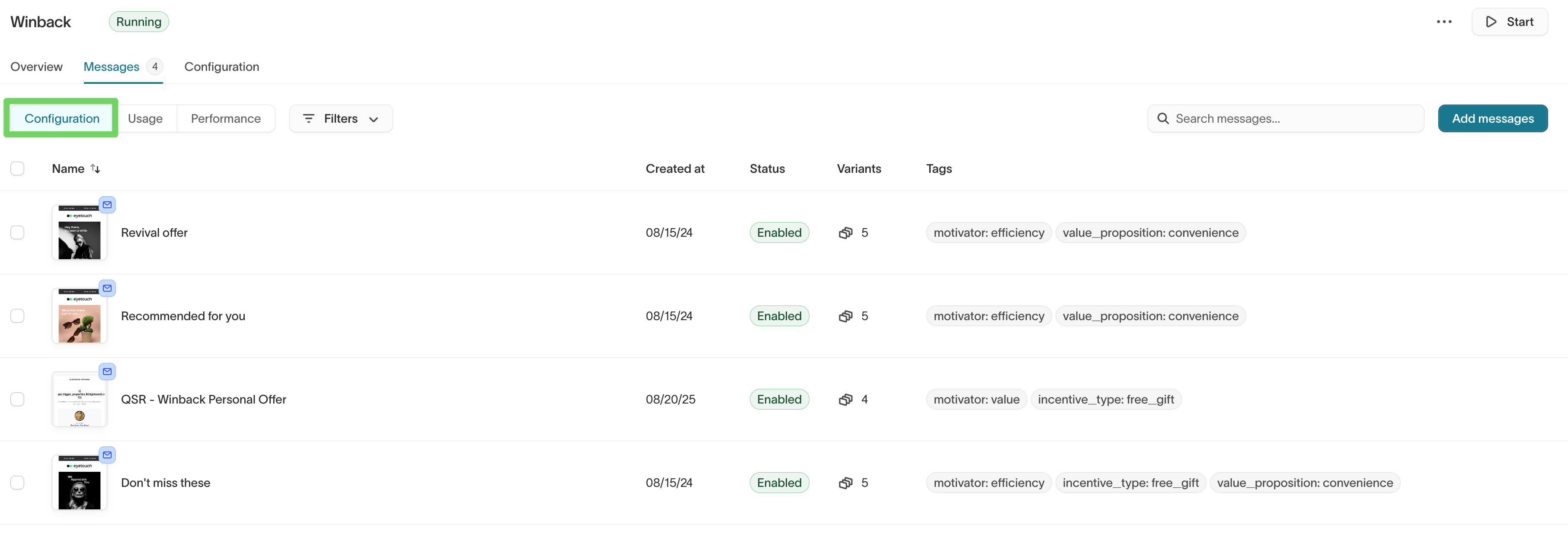
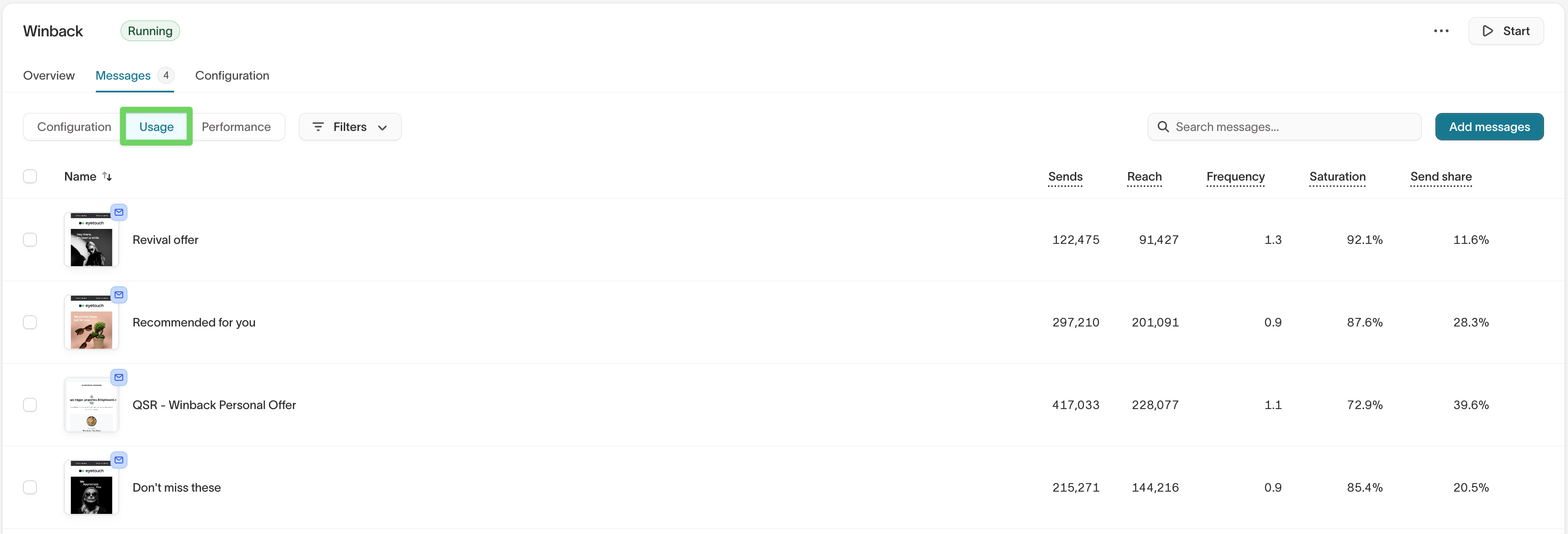
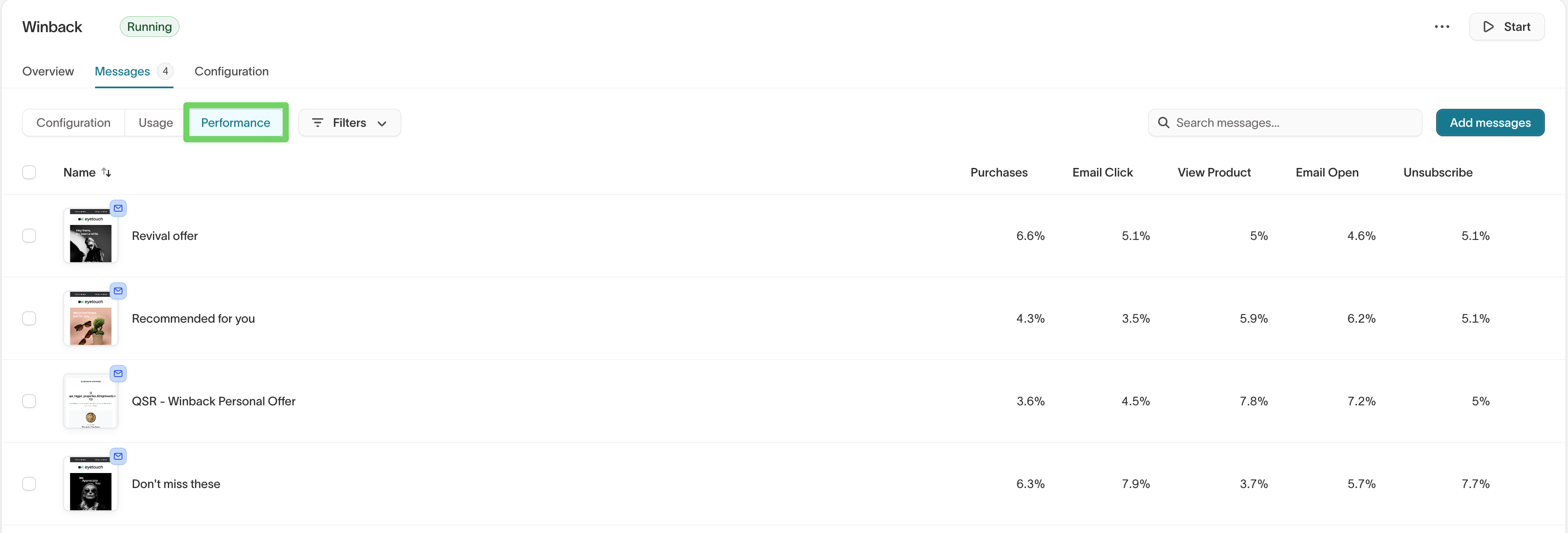
Use these views together to validate message setup, diagnose issues, and understand how messages perform over time.
Manage messages at scale
AI Decisioning supports two bulk workflows for managing messages:
- CSV upload for adding or updating message content and metadata
- Bulk actions for applying message guardrails consistently
Use CSV upload for content and metadata changes, and bulk actions for guardrails and delivery controls.
Bulk upload and export messages (CSV)
Use bulk CSV upload to add or update messages in an agent at scale. This workflow is best for structured, repeatable updates that are easier to manage in a spreadsheet.
What you can manage with CSV upload
Using a CSV file, you can:
- Add new messages to an agent
- Update existing messages
- Add or modify:
- Message content
- Variables and variable options
- Message- and variant-level tags
What CSV upload does not support
CSV upload does not support message guardrails, including:
- Eligibility filters
- Send limits
- Campaign attribution
Apply these settings in the product UI using bulk actions.
Upload messages with CSV
- Go to
AI Decisioning → Agentsand select an agent. - Open the
Messagestab. - Click
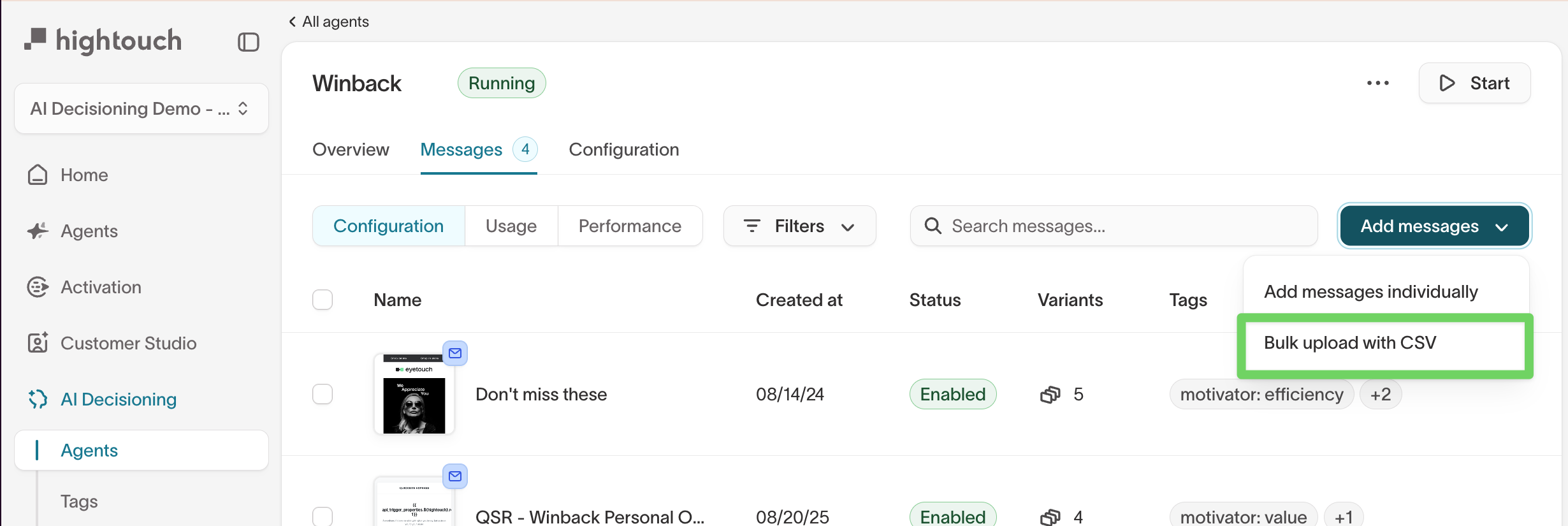
Add messages, then selectBulk upload with CSV. - Download the provided CSV template.
- Edit the template with your updates.
- Upload the completed CSV to apply changes.
You must use the provided CSV template. Uploads will fail if required columns are missing or renamed.
Apply message guardrails in bulk
Use bulk actions to apply message-level guardrails to multiple messages at once.
Supported bulk guardrails
You can apply:
- Eligibility filters
- Send limits
- Campaign attribution values
Apply guardrails in bulk
- Go to
AI Decisioning → Agentsand select an agent. - Open the
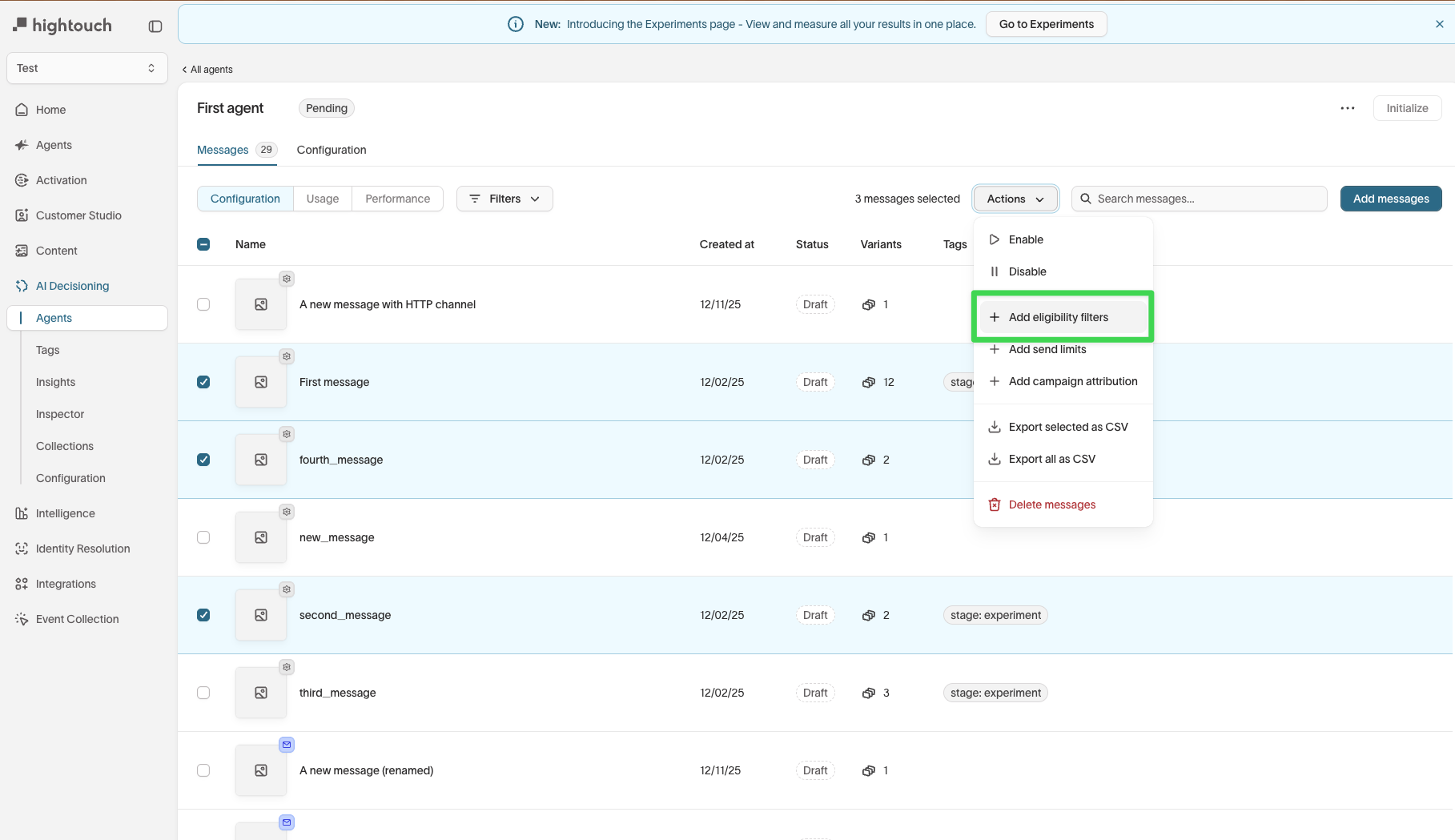
Messagestab. - Select one or more messages.
- Click
Actions. - Choose one of the following:
Add eligibility filtersAdd send limitsAdd campaign attribution
- Configure the settings and apply them.
Bulk actions update message configuration only. They do not change message content, variants, or tags.
Troubleshooting
| Issue | Likely cause | Resolution |
|---|---|---|
| Agent isn’t sending messages | The target audience is empty, or the destination connection is paused. | Check audience eligibility in Configuration → Eligibility, and confirm destination status under Integrations. |
| Messages not appearing in ESP | Message or automation identifier mismatch. | Verify the correct destination and automation identifier when adding messages. |
| No performance data visible | The agent is new, paused, or running only a holdout group. | Wait 24–48 hours after activation, or adjust your holdout percentage to include active treatments. |
| Smart Suppression chart missing | Suppression is off or not enough send data has been collected. | Enable Smart suppression and allow at least 2 weeks of message activity for predictions to populate. |
| Goals not updating or showing results | The event model or schema changed in your workspace. | Reopen the goal configuration, reselect the event model, and save the update so the agent can rebuild its data relationships. |
If you recently updated goals, audiences, or connected destinations, allow time for the agent to refresh data before performance metrics stabilize.